
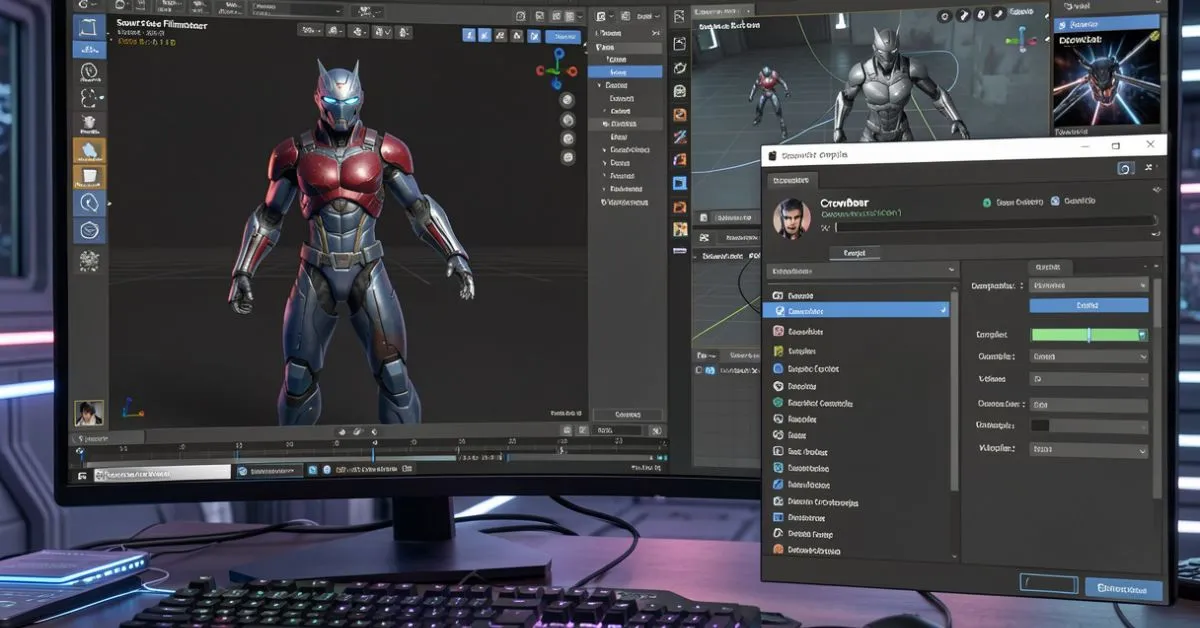
Introduction
Creating custom characters and props for Source Filmmaker opens up endless creative possibilities. However, getting your 3D models into the software requires a specific conversion process that many beginners find challenging.
The SFM compile process transforms your standard 3D files into a format the Source Engine understands. This involves converting mesh data, textures, and rigging information into proprietary formats like MDL, VTX, and VVD files.
Whether you want to import characters from Blender, Maya, or other modeling software, understanding this workflow is essential. Many talented artists give up too early because they encounter confusing errors or lack proper guidance.
This comprehensive guide walks you through every step of the process. You will learn about required tools, file preparation, troubleshooting techniques, and optimization strategies. By the end, you will confidently bring your custom creations into Source Filmmaker.
Let us dive into the details and get your models working properly.
What Does Compiling Mean in Source Filmmaker
When we talk about converting models for Source Filmmaker, we refer to translating 3D data from universal formats into Source Engine-specific files. The Source Engine cannot read standard formats like FBX, OBJ, or DAE directly. Instead, it requires compiled binary files optimized for real-time rendering.
This translation process reads your model’s geometry, skeleton, materials, and animation data. It then outputs several interconnected files that work together during playback. The primary output is an MDL file containing model information and references to other supporting files.
Key Files Generated During Conversion:
| File Extension | Purpose | Required |
|---|---|---|
| MDL | Main model data and references | Yes |
| VTX | Hardware-specific render data | Yes |
| VVD | Vertex and mesh information | Yes |
| PHY | Physics collision data | Optional |
| ANI | Animation sequences | Optional |
Understanding these file relationships helps troubleshoot issues when something goes wrong. Missing or corrupted supporting files often cause models to appear invisible or crash the software entirely.
The Source Engine was developed by Valve in the early 2000s. Despite its age, the compilation workflow remains largely unchanged. However, community tools have evolved significantly, making the process more accessible than ever in 2026.
Essential Tools You Need Before Starting
Before beginning any model conversion work, you must gather several essential tools. Each serves a specific purpose in the pipeline, and missing even one can halt your progress entirely.
Crowbar stands as the most important utility for this workflow. Developed by community member ZeqMacaw, this free tool provides a graphical interface for the compilation process. It handles the technical backend while you focus on creative decisions. Download the latest version from the official GitHub repository.
Blender Source Tools provides direct export capabilities from Blender. This addon creates SMD and DMX files ready for compilation. For Blender users, this eliminates the need for manual format conversion. The 2026 version supports Blender 4.0 and newer.
VTFEdit converts standard image formats into VTF textures. The Source Engine requires this proprietary texture format for all materials. This tool also lets you adjust compression settings and generate mipmaps.
GCFScape extracts files from Valve’s archive formats. You will need this to access reference models and materials from existing games. Studying official assets helps you understand proper structure and naming conventions.
Software Requirements Overview:
| Tool Name | Purpose | Latest Version (2026) |
|---|---|---|
| Crowbar | Model compilation GUI | 0.76 |
| Blender Source Tools | Export addon | 3.2.1 |
| VTFEdit | Texture conversion | 1.3.5 |
| GCFScape | Archive extraction | 1.8.6 |
| Notepad++ | QC file editing | 8.6 |
A good text editor rounds out your toolkit. QC files are plain text and require precise syntax. Notepad++ offers syntax highlighting that makes editing much easier. You can also find custom QC language definitions online.
Ensure all tools are properly installed before proceeding. Test each one individually to confirm everything works correctly on your system.
Preparing Your 3D Model for Export
Proper model preparation prevents countless headaches during compilation. Taking time upfront to clean and optimize your mesh saves hours of troubleshooting later.
Start by checking your polygon count. Source Filmmaker handles moderate complexity well, but extremely dense meshes cause performance problems. Aim for under 50,000 triangles for character models. Props and environment pieces should stay even lower.
All faces must be triangulated before export. The Source Engine only understands triangular polygons. Quads and n-gons cause errors or visual glitches. Most 3D software includes automatic triangulation options.
Your model needs a proper skeleton if you want any movement or posing capabilities. Even static props benefit from a simple root bone. Bones should follow Valve naming conventions for automatic recognition. The skeleton hierarchy must be clean without circular dependencies.
Model Preparation Checklist:
- Remove all non-mesh objects from the scene
- Apply all transformations and modifiers
- Triangulate the entire mesh
- Check for inverted normals
- Verify UV mapping coverage
- Name all materials clearly
- Position model at world origin
- Ensure skeleton is properly weighted
Material names deserve special attention. Each material on your model becomes a separate VMT file. Use simple, descriptive names without spaces or special characters. Underscores work perfectly for multi-word names.
Understanding QC Files and Their Structure
QC files are text documents that control how your model compiles. They specify everything from file paths to physics properties. Learning QC syntax is essential for anyone serious about custom content creation.
Every QC file begins with a modelname command. This defines where the compiled output will appear within the game directory structure. The path must be relative to your models folder.
The body command references your SMD or DMX file containing mesh data. You can include multiple body groups for interchangeable parts. Character models often use this for clothing variations or accessories.
Sequences define animations your model can play. Static models need at least one idle sequence. Animated characters require additional sequences for walking, talking, and other actions.
Step-by-Step Process for Model Conversion
Now comes the actual conversion process. Following these steps carefully ensures successful output on your first attempt.
Open Crowbar and navigate to the Compile tab. This section handles all model conversion operations. The interface might seem overwhelming initially, but you only need a few options for basic compilation.
Click the browse button next to the QC file input. Navigate to your prepared QC file and select it. Crowbar automatically detects associated SMD files if they share the same folder.
Set your game configuration correctly. Source Filmmaker uses a specific engine branch. Choose “Source Filmmaker” from the dropdown menu. This ensures compatibility with the correct tools and paths.
Compilation Steps:
- Launch Crowbar application
- Select the Compile tab
- Browse and select your QC file
- Choose Source Filmmaker as target game
- Set output directory to usermod/models
- Click Compile button
- Review output log for errors
- Test model in Source Filmmaker
Watch the output log carefully during compilation. Green messages indicate success. Yellow warnings suggest potential issues worth investigating. Red errors require immediate attention before proceeding.
After successful compilation, launch Source Filmmaker. Open the model browser and navigate to your custom directory. Your model should appear in the list ready for use.
Common Errors and How to Fix Them
Even experienced creators encounter errors regularly. Understanding common problems and their solutions dramatically speeds up your workflow.
The infamous checkered purple-black texture indicates missing materials. Verify your VMT files exist in the correct materials folder. Double-check spelling and capitalization. Paths are case-sensitive on some systems.
Models appearing as ERROR signs usually mean the compiled files are corrupted or incomplete. Re-run the compilation process and check the log for hidden errors. Sometimes antivirus software interferes with file creation.
Bone-related errors often stem from naming inconsistencies. Bone names in your SMD must match those referenced in the QC file exactly. Even minor typos cause complete compilation failures.
Common Errors and Solutions:
| Error Message | Likely Cause | Solution |
|---|---|---|
| Cannot find material | Wrong cdmaterials path | Verify VMT file location |
| Bone not found | Name mismatch | Check bone naming consistency |
| Too many vertices | Mesh exceeds limits | Reduce polygon count |
| Physics error | Invalid collision mesh | Simplify collision model |
| Sequence missing | Reference file not found | Check SMD file paths |
Physics compilation failures happen when collision meshes are too complex. The engine has strict limits on collision geometry. Use simple convex shapes rather than detailed concave meshes.
Memory errors during compilation suggest your model is too complex. Try compiling on a system with more RAM. Alternatively, split your model into multiple smaller pieces.
Optimizing Your Models for Better Performance
Performance optimization ensures your models run smoothly during playback and rendering. Poorly optimized assets cause frame drops, crashes, and extended render times.
Level of detail systems (LOD) display simpler versions at distances. Creating multiple LOD stages significantly improves performance with minimal visual impact. Most viewers never notice the switch happening.
Texture resolution affects both memory usage and visual quality. 2048×2048 textures work well for main characters. Background elements rarely need more than 512×512. Match resolution to screen prominence.
Optimization Guidelines:
- Create 2-3 LOD stages for complex models
- Use appropriate texture sizes for intended use
- Combine materials where possible
- Minimize bone count for static objects
- Compress textures with DXT formats
- Remove hidden geometry completely
Bone count affects animation performance significantly. Characters should use bones only where needed for deformation. Decorative bones without animation purpose waste processing power.
Material consolidation reduces draw calls. Each unique material requires separate rendering passes. Combining multiple textures into atlas sheets improves performance substantially.
Advanced Techniques for Experienced Users
Once you master basics, advanced techniques expand creative possibilities significantly. These methods require solid foundational knowledge but enable professional-quality results.
Flexes allow facial expressions and morph targets. Creating flex controllers involves shape keys in Blender and corresponding QC commands. Proper flex implementation makes characters far more expressive.
Jigglebones add secondary motion to hair, clothing, and accessories. These physics-driven bones respond naturally to movement. QC parameters control stiffness, damping, and range of motion.
Advanced Feature Comparison:
| Feature | Complexity | Performance Impact | Common Use Case |
|---|---|---|---|
| Flexes | High | Moderate | Facial animation |
| Jigglebones | Medium | Low | Hair/cloth physics |
| Bodygroups | Medium | None | Costume variations |
| Attachments | Low | None | Prop placement |
| Custom sequences | High | Low | Specific animations |
Eye posing implementation creates realistic gaze direction. This requires specific bone naming and controller setup. Eye tracking dramatically improves character believability in scenes.
Best Practices for Professional Results
Professional-quality results require consistent practices beyond technical knowledge. These principles separate amateur work from polished productions.
Always maintain organized project folders. Keep source files, exports, textures, and compiled outputs in logical structures. Future modifications become nightmarish without proper organization.
Version control your work at every significant milestone. Save numbered iterations before major changes. This practice allows recovery when experiments fail badly.
Professional Workflow Principles:
- Test models immediately after each compilation
- Keep source files backed up separately
- Use consistent naming conventions across projects
- Document unusual settings or workarounds
- Review performance with multiple model instances
- Get feedback before finalizing assets
Resources and Community Support
The Source Filmmaker community remains vibrant in 2026. Numerous resources exist for learning and troubleshooting beyond this guide.
The Valve Developer Wiki contains official documentation for all Source Engine tools. While occasionally outdated, it remains the authoritative reference for technical specifications. Bookmark this resource permanently.
Dedicated forums on Steam and Facepunch host active discussions. Search existing threads before posting questions. Many common problems have detailed solutions already documented.
YouTube tutorials cover virtually every aspect of the pipeline. Video demonstrations clarify concepts that text explanations struggle to convey. Several channels specialize specifically in Source Filmmaker content creation.
Discord servers provide real-time community assistance. Getting live help often resolves problems faster than forum posts. Respectfully ask questions after searching for existing answers.
FAQs
What software works best for creating Source Filmmaker models?
Blender remains the most popular free option with excellent Source Tools support. Maya and 3ds Max work well but require additional export plugins.
How long does the entire process typically take?
Simple props take 30 minutes to an hour. Complex rigged characters require several hours to properly prepare and troubleshoot.
Can I convert models from other games directly?
Legally, you need permission from original creators. Technically, many formats can convert through intermediate steps using appropriate tools.
Why does my model appear completely invisible?
Missing or incorrectly pathed material files cause this issue most frequently. Verify your VMT files exist exactly where cdmaterials specifies.
Do I need programming knowledge for this process?
No programming required. QC files use simple command syntax that anyone can learn through examples and practice.
Conclusion
Converting custom models for Source Filmmaker requires patience, attention to detail, and proper understanding of the pipeline. While the learning curve seems steep initially, consistent practice builds proficiency quickly. Start with simple models before attempting complex characters. Each successful conversion teaches valuable lessons applicable to future projects. Failures provide equally important learning opportunities when analyzed carefully.
The community resources available in 2026 make learning more accessible than ever. Take advantage of tutorials, forums, and Discord servers when you encounter obstacles. Your creative visions deserve proper realization within Source Filmmaker. With the knowledge from this guide, you now have the foundation to bring those visions to life. Begin with a simple test model today and build your skills progressively.
Download Crowbar and Blender Source Tools right now. Follow this guide step by step with your first model. You will be creating custom content confidently before you know it.